
What is a User-Agent?
When it comes to browser fingerprinting, User-Agent is often the first thing mentioned. It's an HTTP header that the browser sends to the web server, containing information such as browser type, version, and operating system.
What is an HTTP header?
When you type a URL into your browser and press Enter, the browser sends a request to the server to fetch the webpage's content. This request includes some extra information——and that information is the HTTP header.
You can think of an HTTP header as the order slip you hand to a waiter in a restaurant. You sit down, fill out your order, and hand it over, so the kitchen knows what you want. Similarly, the HTTP header tells the server what your browser is requesting and any special requirements it has.
HTTP headers contain various types of information, such as:
User-Agent —— This is like telling the waiter your name so they know who is ordering. It tells the server which browser and operating system you are using.
Accept —— This is like specifying on the order slip what types of food you can eat (e.g., Chinese, Western, or vegetarian). It tells the server which response formats your browser can accept, such as HTML pages, images, or videos.
Referer —— This is like telling the waiter you came to the restaurant because a friend recommended it. It tells the server which webpage you came from.
Cookie —— This is like writing down special requests on the order slip, such as “no spicy” or “less salt.” Cookies are small text files stored in your browser that contain information related to your website visits.
The purpose of an HTTP header is simple: to help the server understand your request and return the most appropriate content——just like an order slip tells the waiter what you want to eat.
What makes up a User-Agent?
A User-Agent string is composed of several parts, each carrying specific information——from the browser type to the operating system version. Let's break it down with a few examples:
Example 1 (Chrome on Windows):
Mozilla/5.0 (Windows NT 10.0; Win64; x64) AppleWebKit/537.36 (KHTML, like Gecko) Chrome/94.0.4606.81 Safari/537.36
Example 2 (Firefox on Windows):
Mozilla/5.0 (Windows NT 6.1; Win64; x64; rv:93.0) Gecko/20100101 Firefox/93.0
Example 3 (Safari on macOS):
Mozilla/5.0 (Macintosh; Intel Mac OS X 10_15_7) AppleWebKit/605.1.15 (KHTML, like Gecko) Version/15.0 Safari/605.1.15
Here's what each part means:
Mozilla/5.0 —— A general identifier indicating that the User-Agent follows the Mozilla specification, version 5.0.
Operating System Information —— Detailed information and version of the user's operating system. This is important for developers because different operating systems may have different features or limitations. For example, (Windows NT 10.0; Win64; x64) indicates a 64-bit Windows 10 system.
Rendering Engine Information —— The core component the browser uses to render web pages. Knowing the rendering engine helps developers optimize websites for specific browsers. For example, AppleWebKit/537.36 indicates the use of Apple's WebKit engine.
Compatibility Mode Information —— Indicates whether the browser is running in a specific compatibility mode, helping developers ensure the website adapts to different browser modes. (KHTML, like Gecko) indicates that the browser uses a rendering engine similar to KHTML and Gecko when processing pages.
Application Information —— The specific name and version number of the browser. For example, Chrome/94.0.4606.81 indicates the user is using Chrome version 94.0.4606.81.
Are all browser User-Agents the same?
Not exactly. Although the User-Agents of major browsers like Chrome, Firefox, Safari, and Edge all contain information such as the operating system, browser type, version, and rendering engine, there are still subtle differences between them.
Let's compare:
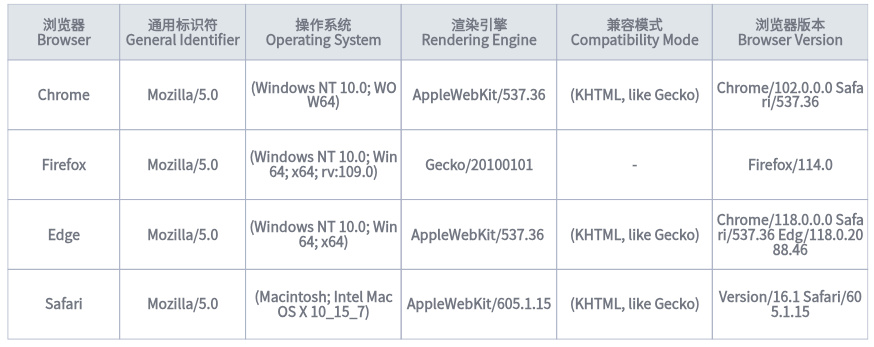
As you can see, apart from the general identifier, there are significant differences in the User-Agents of various browsers.
Why are there two User-Agents?
When you use a tool like realfp to check your browser's User-Agent fingerprint, you might find that two different User-Agents are displayed. Why is that?
In fact, there are two ways to obtain a user's User-Agent:
Via HTTP Request —— This is done on the server-side, where the server parses the User-Agent field from the HTTP header.
Via JavaScript —— This is done on the client-side (in the user's browser) using JavaScript functions like window.navigator.userAgent, without relying on a server-side HTTP request.
For example: suppose you have a computer that is not connected to the internet, so the browser cannot make requests to any website. But you still want to know the browser's User-Agent——you can open Chrome, press F12 to open the developer tools, click the Console tab, and type window.navigator.userAgent into the console to see the browser's User-Agent directly.
If you frequently write scripts to scrape website content, it's very important to ensure that both User-Agents are modified consistently. You should always use a tool like realfp to verify that the modified User-Agent matches a real-world scenario.
What is the User-Agent used for?
In today's digital environment, the User-Agent has a wide range of practical applications:
Website Traffic Analysis —— Analytics tools use User-Agent data to track visitors' browsers, operating systems, and device types, helping website operators understand their audience and optimize the user experience.
Website Compatibility —— Developers analyze User-Agent information to ensure their websites function correctly on different browsers and devices.
Malicious Activity Detection —— Security teams and administrators use User-Agent data to detect suspicious or abnormal activity, as certain User-Agent strings may indicate attacks or abusive behavior.
Targeted Advertising —— Marketing teams use User-Agent data to better target ads, as users on different devices and browsers may respond differently to ad formats.
Data Analysis and Market Research —— Researchers and analysts use User-Agent data to understand user behavior across different browsers and devices, thereby gaining insights into user preferences and trends.
Multi-Account Management
As we've discussed, websites can gather a lot of information about a user's device and browsing habits through the User-Agent, including:
·Browser type and version
·Operating system (Windows, macOS, Android, etc.)
·Device type (computer or mobile phone)
If you manage multiple accounts, it is crucial to ensure that the information characteristics differ between each account. Otherwise, websites may link your multiple accounts based on this information.
Using browser extensions to modify the User-Agent is not an effective way to disguise your browser, and this is not a secure preventive measure. Especially when the User-Agent fingerprint is combined with other fingerprinting information, it needs to match the characteristics of a real device.
In contrast, a fingerprint browser can generate a fingerprint that is consistent with real device characteristics and allows you to run each account in a separate, isolated environment. This not only protects your privacy but also ensures the security of your accounts.
What is an HTTP header?
When you type a URL into your browser and press Enter, the browser sends a request to the server to fetch the webpage's content. This request includes some extra information——and that information is the HTTP header.
You can think of an HTTP header as the order slip you hand to a waiter in a restaurant. You sit down, fill out your order, and hand it over, so the kitchen knows what you want. Similarly, the HTTP header tells the server what your browser is requesting and any special requirements it has.
HTTP headers contain various types of information, such as:
User-Agent —— This is like telling the waiter your name so they know who is ordering. It tells the server which browser and operating system you are using.
Accept —— This is like specifying on the order slip what types of food you can eat (e.g., Chinese, Western, or vegetarian). It tells the server which response formats your browser can accept, such as HTML pages, images, or videos.
Referer —— This is like telling the waiter you came to the restaurant because a friend recommended it. It tells the server which webpage you came from.
Cookie —— This is like writing down special requests on the order slip, such as “no spicy” or “less salt.” Cookies are small text files stored in your browser that contain information related to your website visits.
The purpose of an HTTP header is simple: to help the server understand your request and return the most appropriate content——just like an order slip tells the waiter what you want to eat.
What makes up a User-Agent?
A User-Agent string is composed of several parts, each carrying specific information——from the browser type to the operating system version. Let's break it down with a few examples:
Example 1 (Chrome on Windows):
Mozilla/5.0 (Windows NT 10.0; Win64; x64) AppleWebKit/537.36 (KHTML, like Gecko) Chrome/94.0.4606.81 Safari/537.36
Example 2 (Firefox on Windows):
Mozilla/5.0 (Windows NT 6.1; Win64; x64; rv:93.0) Gecko/20100101 Firefox/93.0
Example 3 (Safari on macOS):
Mozilla/5.0 (Macintosh; Intel Mac OS X 10_15_7) AppleWebKit/605.1.15 (KHTML, like Gecko) Version/15.0 Safari/605.1.15
Here's what each part means:
Mozilla/5.0 —— A general identifier indicating that the User-Agent follows the Mozilla specification, version 5.0.
Operating System Information —— Detailed information and version of the user's operating system. This is important for developers because different operating systems may have different features or limitations. For example, (Windows NT 10.0; Win64; x64) indicates a 64-bit Windows 10 system.
Rendering Engine Information —— The core component the browser uses to render web pages. Knowing the rendering engine helps developers optimize websites for specific browsers. For example, AppleWebKit/537.36 indicates the use of Apple's WebKit engine.
Compatibility Mode Information —— Indicates whether the browser is running in a specific compatibility mode, helping developers ensure the website adapts to different browser modes. (KHTML, like Gecko) indicates that the browser uses a rendering engine similar to KHTML and Gecko when processing pages.
Application Information —— The specific name and version number of the browser. For example, Chrome/94.0.4606.81 indicates the user is using Chrome version 94.0.4606.81.
Are all browser User-Agents the same?
Not exactly. Although the User-Agents of major browsers like Chrome, Firefox, Safari, and Edge all contain information such as the operating system, browser type, version, and rendering engine, there are still subtle differences between them.
Let's compare:
As you can see, apart from the general identifier, there are significant differences in the User-Agents of various browsers.
Why are there two User-Agents?
When you use a tool like realfp to check your browser's User-Agent fingerprint, you might find that two different User-Agents are displayed. Why is that?
In fact, there are two ways to obtain a user's User-Agent:
Via HTTP Request —— This is done on the server-side, where the server parses the User-Agent field from the HTTP header.
Via JavaScript —— This is done on the client-side (in the user's browser) using JavaScript functions like window.navigator.userAgent, without relying on a server-side HTTP request.
For example: suppose you have a computer that is not connected to the internet, so the browser cannot make requests to any website. But you still want to know the browser's User-Agent——you can open Chrome, press F12 to open the developer tools, click the Console tab, and type window.navigator.userAgent into the console to see the browser's User-Agent directly.
If you frequently write scripts to scrape website content, it's very important to ensure that both User-Agents are modified consistently. You should always use a tool like realfp to verify that the modified User-Agent matches a real-world scenario.
What is the User-Agent used for?
In today's digital environment, the User-Agent has a wide range of practical applications:
Website Traffic Analysis —— Analytics tools use User-Agent data to track visitors' browsers, operating systems, and device types, helping website operators understand their audience and optimize the user experience.
Website Compatibility —— Developers analyze User-Agent information to ensure their websites function correctly on different browsers and devices.
Malicious Activity Detection —— Security teams and administrators use User-Agent data to detect suspicious or abnormal activity, as certain User-Agent strings may indicate attacks or abusive behavior.
Targeted Advertising —— Marketing teams use User-Agent data to better target ads, as users on different devices and browsers may respond differently to ad formats.
Data Analysis and Market Research —— Researchers and analysts use User-Agent data to understand user behavior across different browsers and devices, thereby gaining insights into user preferences and trends.
Multi-Account Management
As we've discussed, websites can gather a lot of information about a user's device and browsing habits through the User-Agent, including:
·Browser type and version
·Operating system (Windows, macOS, Android, etc.)
·Device type (computer or mobile phone)
If you manage multiple accounts, it is crucial to ensure that the information characteristics differ between each account. Otherwise, websites may link your multiple accounts based on this information.
Using browser extensions to modify the User-Agent is not an effective way to disguise your browser, and this is not a secure preventive measure. Especially when the User-Agent fingerprint is combined with other fingerprinting information, it needs to match the characteristics of a real device.
In contrast, a fingerprint browser can generate a fingerprint that is consistent with real device characteristics and allows you to run each account in a separate, isolated environment. This not only protects your privacy but also ensures the security of your accounts.